
How to integrate Pathport DMX Node with popular consoles?
|
- How do I correctly set up the IP address and subnet mask on my Pathport DMX node to ensure it's discoverable by my GrandMA2 or ETC Eos console, especially when my console is on a different subnet?
- My Pathport node is physically connected, but my console (e.g., Avolites Titan, Hog4) isn't detecting it. What are the most overlooked troubleshooting steps for network discovery issues beyond just checking cables?
- Can a Pathport DMX node simultaneously receive Art-Net from one console and sACN from another, then output merged DMX? How do I configure this multi-protocol input and merging priority?
- When distributing DMX across a large venue using multiple Pathport nodes, what are the best practices for minimizing latency and ensuring signal integrity, especially for time-critical effects like pixel mapping?
- Beyond basic DMX output, how can I leverage Pathport nodes for advanced functionalities like RDM (Remote Device Management) or custom DMX routing, and what are the practical steps for setting these up with my console?
- I'm considering a Pathport DMX node for a touring rig. What are the key differences in setup and reliability compared to traditional DMX splitters, and what considerations should I make for a robust, portable network?
Modern stage lighting systems increasingly rely on robust DMX over Ethernet solutions for flexibility and scalability. Among the leading choices, Pathport DMX nodes stand out for their reliability and comprehensive feature set. However, for beginners, integrating these powerful Ethernet DMX converters with popular lighting consoles can sometimes feel daunting. This guide addresses common, specific pain points often encountered when learning how to integrate Pathport DMX Node with popular consoles, providing in-depth answers to get you up and running.
How do I correctly set up the IP address and subnet mask on my Pathport DMX node to ensure it's discoverable by my GrandMA2 or ETC Eos console, especially when my console is on a different subnet?
Setting up the correct network parameters is the foundation for any networked DMX system. Pathport nodes typically default to DHCP, but for a stable lighting network, a static IP address is highly recommended. To configure your Pathport DMX node:
- Connect and Discover: Connect your Pathport node to your computer via a direct Ethernet cable or through a network switch. Download and install the free Pathport Manager software from Luminex (or the original manufacturer, Pathway Connectivity, depending on the node's vintage). This software is your primary tool for configuration.
- Initial Discovery: Pathport Manager should automatically discover the node, even if it's on a different subnet (it uses Link-Local Multicast Name Resolution or similar discovery protocols). If not, ensure your computer's network adapter is set to DHCP or a compatible static IP.
- Assign Static IP: Once discovered in Pathport Manager, navigate to the node's network settings. Assign a static IP address, subnet mask, and gateway that are compatible with your console's network. For example, if your GrandMA2 or ETC Eos console is on 10.0.0.X with a 255.255.255.0 subnet mask, your Pathport node should be assigned an IP like 10.0.0.Y (where Y is unique and not used by other devices) with the same 255.255.255.0 subnet mask. It's crucial that the first three octets of the IP address match your console's subnet if they are to communicate directly without a router.
- Console Configuration: Finally, ensure your console's network settings are configured to output the correct DMX over Ethernet protocol (sACN or Art-Net) to the subnet where your Pathport node resides. Most consoles allow you to specify the universe mapping for each DMX output port on the node.
My Pathport node is physically connected, but my console (e.g., Avolites Titan, Hog4) isn't detecting it. What are the most overlooked troubleshooting steps for network discovery issues beyond just checking cables?
When your DMX network interface isn't appearing, it's frustrating. Beyond ensuring your Ethernet cables are good and properly seated, consider these often-overlooked troubleshooting steps:
- IP Address Conflicts: Use a network scanner tool (e.g., Angry IP Scanner, Advanced IP Scanner) to check for duplicate IP addresses on your network. Two devices with the same IP will cause intermittent or no communication. Pathport Manager also has tools to help identify conflicts.
- Firewall Settings: Your computer's or console's firewall might be blocking the necessary network ports for sACN or Art-Net communication. Temporarily disable firewalls for testing, or create specific rules to allow traffic on UDP ports (e.g., 6454 for Art-Net, 5568 for sACN).
- Network Switch Configuration: If you're using a managed network switch, ensure it's configured correctly. Crucially, disable IGMP snooping on ports connected to lighting devices unless you fully understand its implications and have configured it for your specific multicast traffic. IGMP snooping can prevent multicast DMX over Ethernet data (like sACN) from reaching all devices. Also, ensure no VLANs are segmenting your lighting network unintentionally.
- Firmware Updates: Outdated firmware on either your Pathport node or your console can cause compatibility issues. Check the manufacturer's websites for the latest firmware versions and update as necessary.
- Pathport Manager Diagnostics: Pathport Manager offers diagnostic tools. Check the Status tab for network link information, received protocols, and error logs. This can provide clues about network connectivity or protocol reception issues.
- Console Network Interface: Verify that your console's specific network interface (NIC) is enabled and configured to send/receive DMX data on the correct subnet and protocol. Some consoles have multiple NICs, and it's easy to select the wrong one.
Can a Pathport DMX node simultaneously receive Art-Net from one console and sACN from another, then output merged DMX? How do I configure this multi-protocol input and merging priority?
Yes, this is one of the powerful features of Pathport DMX nodes, making them excellent DMX distribution and conversion tools. Pathport nodes are designed to be protocol-agnostic, supporting both Art-Net and sACN (and others like KiNet).
- Input Configuration: Within Pathport Manager, for each DMX output port on the node, you can specify its input source. You can set it to receive sACN, Art-Net, or even physical DMX input. The node can listen for multiple protocols simultaneously on the network.
- DMX Merging: Pathport nodes excel at DMX merging. For each output port, you can configure the merging behavior:
- HTP (Highest Takes Precedence): The highest value for each DMX channel from all active sources is outputted. This is common for intensity control.
- LTP (Latest Takes Precedence): The most recently updated value for a DMX channel from the highest priority source is outputted. This is typical for moving light parameters like pan/tilt.
- Priority Merging (sACN): sACN includes a priority value (1-200). If multiple sACN sources send data for the same universe, the source with the highest priority takes control. Pathport nodes respect and allow you to configure sACN priority settings.
- Configuring Sources: In Pathport Manager, for each DMX output, you'll see options to add sources. You can add multiple sACN universes (specifying the universe number and priority) and multiple Art-Net universes (specifying the Art-Net subnet/universe). The node will automatically merge these based on the chosen HTP/LTP/Priority settings. This flexibility allows for seamless primary/backup console setups or integrating different control systems.
When distributing DMX across a large venue using multiple Pathport nodes, what are the best practices for minimizing latency and ensuring signal integrity, especially for time-critical effects like pixel mapping?
Large-scale DMX distribution requires careful network design to maintain performance. Pathport DMX nodes are built for this, but best practices are key:
- Dedicated Gigabit Ethernet Network: Always use a dedicated network for your lighting control system. Do not share it with office IT, guest Wi-Fi, or other high-bandwidth applications. Use gigabit Ethernet switches, even if your DMX over Ethernet traffic is less than a gigabit; this provides ample headroom and reduces bottlenecks.
- Quality Cabling: Use high-quality Cat5e or Cat6 Ethernet cables. Ensure all connections are secure and cables are properly terminated. Poor cabling is a common source of intermittent network issues.
- Managed Switches with IGMP Snooping Configured: While generally advised to disable IGMP snooping for simplicity, in very large networks with significant sACN multicast traffic, a properly configured managed switch with IGMP snooping can be beneficial. It ensures multicast packets are only sent to ports that need them, reducing overall network traffic. However, misconfiguration can be detrimental, so proceed with caution and expertise.
- Network Segmentation (VLANs): For extremely large or complex setups, consider using VLANs to segment your lighting network into logical groups (e.g., FOH control, stage lighting, architectural lighting). This can improve performance and security, but adds complexity.
- Minimize Hops: While DMX over Ethernet can traverse many switches, try to keep the number of network hops (switches) between your console and the Pathport nodes to a minimum, especially for critical DMX universes. Each hop adds a tiny amount of latency.
- sACN for Scalability: For large numbers of universes, sACN is generally preferred over Art-Net due to its multicast nature and built-in priority system, which can be more efficient on a well-managed network. Pathport nodes handle both protocols efficiently.
Beyond basic DMX output, how can I leverage Pathport nodes for advanced functionalities like RDM (Remote Device Management) or custom DMX routing, and what are the practical steps for setting these up with my console?
Pathport nodes are far more than simple DMX output devices; they are intelligent network interfaces for lighting control. Leveraging their advanced features enhances your control and troubleshooting capabilities:
- RDM (Remote Device Management): Pathport nodes fully support RDM, allowing your console to discover, configure, and monitor RDM-enabled fixtures connected to the node's DMX output ports. This is a game-changer for setup and diagnostics.
- Setup: Ensure RDM is enabled on the specific DMX output port within Pathport Manager. Then, on your console (e.g., GrandMA3, ETC Eos, Avolites Titan), initiate an RDM discovery scan. The console will communicate through the Pathport node to find RDM-enabled fixtures.
- Benefits: Change fixture modes, set DMX addresses, monitor sensor data (temperature, fan speed), and troubleshoot issues directly from your console without climbing ladders.
- Custom DMX Routing and Filtering: Pathport Manager allows granular control over DMX routing. You can:
- DMX Input: Configure a DMX port on the node as an input, allowing it to convert physical DMX to sACN or Art-Net for distribution across your network or to feed into your console.
- Universe Remapping: Remap incoming DMX universes to different output universes or even different physical DMX ports on the same node. This is useful for adapting to changing rig requirements without re-patching your console.
- Filtering: Apply filters to DMX data, for instance, to block specific channels from being outputted or to only pass through certain data.
- Port Configuration: Each DMX port on a Pathport node is highly configurable. You can set its direction (input/output), protocol (sACN/Art-Net), universe number, merging behavior, and RDM status independently. This flexibility makes a single Pathport node incredibly versatile in complex lighting network solutions.
I'm considering a Pathport DMX node for a touring rig. What are the key differences in setup and reliability compared to traditional DMX splitters, and what considerations should I make for a robust, portable network?
Transitioning from traditional DMX splitters to networked DMX with Pathport nodes for a touring rig offers significant advantages but also requires a shift in mindset regarding setup and robustness.
Key Differences:
- Cable Management: Traditional DMX uses bulky DMX cables, often requiring long runs and multiple splitters. Networked DMX uses lighter, more flexible Ethernet cables, allowing for hundreds of universes over a single cable run.
- Universe Capacity: Traditional DMX is limited to 512 channels per cable. Pathport nodes allow you to transmit hundreds of universes over a single Ethernet cable, vastly increasing capacity and flexibility.
- Flexibility: DMX splitters are fixed. Pathport nodes offer dynamic routing, merging, and protocol conversion, allowing for quick reconfigurations on the fly without re-cabling.
- Troubleshooting: DMX splitters are relatively simple. Networked DMX introduces network layers, requiring basic network troubleshooting skills. However, Pathport Manager provides powerful diagnostic tools that can be more insightful than simply checking DMX signal lights.
Considerations for a Robust, Portable Network:
- Ruggedized Network Gear: Invest in touring-grade, ruggedized network switches (e.g., Luminex GigaCore, Netgear M4250 series). These are designed to withstand the rigors of touring, offering robust connectors (etherCON), redundant power supplies, and fanless operation.
- Redundant Network Paths: For mission-critical shows, implement network redundancy (e.g., using RSTP/MSTP on managed switches or dual-homing consoles to multiple switches). This ensures that if one cable or switch fails, your DMX network interface remains operational.
- Power Distribution: Ensure clean, stable power for all your network devices and Pathport nodes. Use UPS systems for critical components if power stability is a concern.
- Documentation: Thoroughly document your network topology, IP addresses, universe assignments, and merging configurations. This is invaluable for quick setup and troubleshooting on the road.
- Pre-Configuration and Testing: Configure and thoroughly test your entire networked DMX system in the shop before hitting the road. This includes all Pathport nodes, switches, and console settings. Save configuration files for quick deployment.
- Spares: Carry spare Ethernet cables, network switches, and ideally, a spare Pathport DMX node, especially for critical roles.
Pathport DMX nodes offer unparalleled flexibility, scalability, and reliability for modern stage lighting systems. By mastering their integration, you unlock the full potential of DMX over Ethernet, streamline your workflow, and future-proof your lighting infrastructure. Their robust design and advanced features make them a cornerstone for any professional lighting setup, from theatrical productions to large-scale live events.
For a personalized consultation and quote on integrating Pathport DMX nodes into your specific stage light control system, please contact us at info@rgbsystem.com or visit www.rgbsystem.com.
Latest News
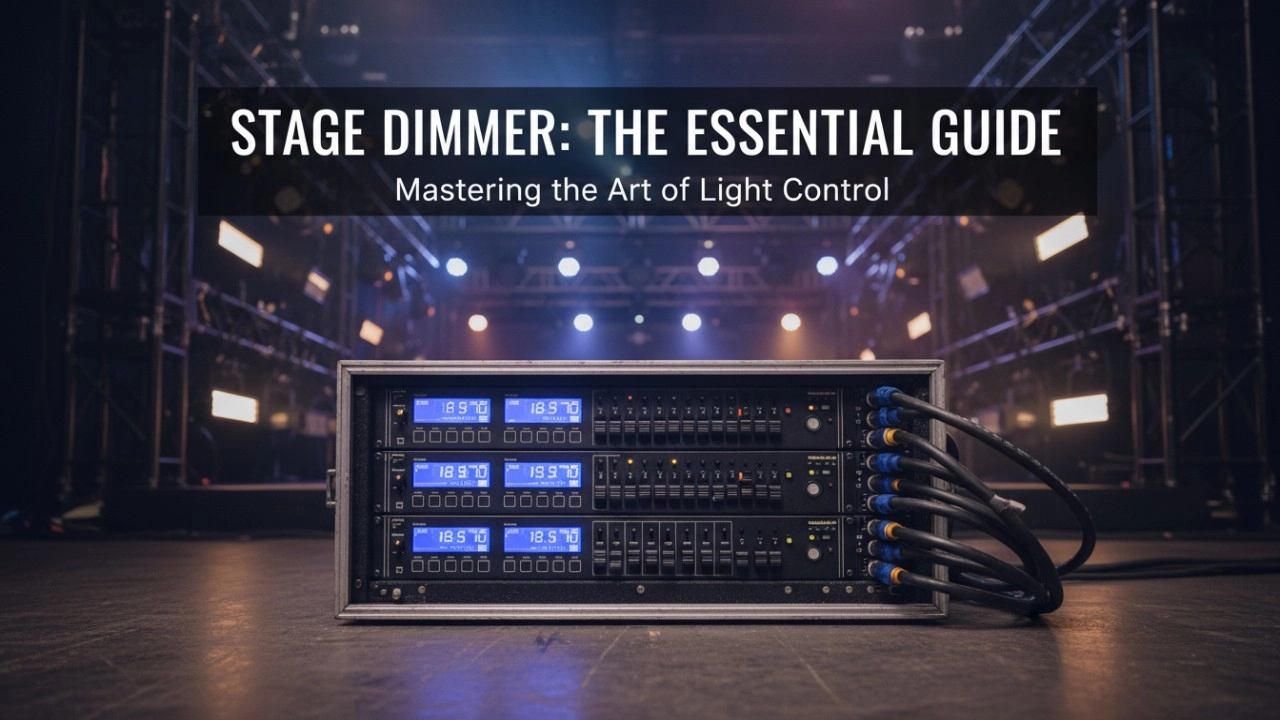
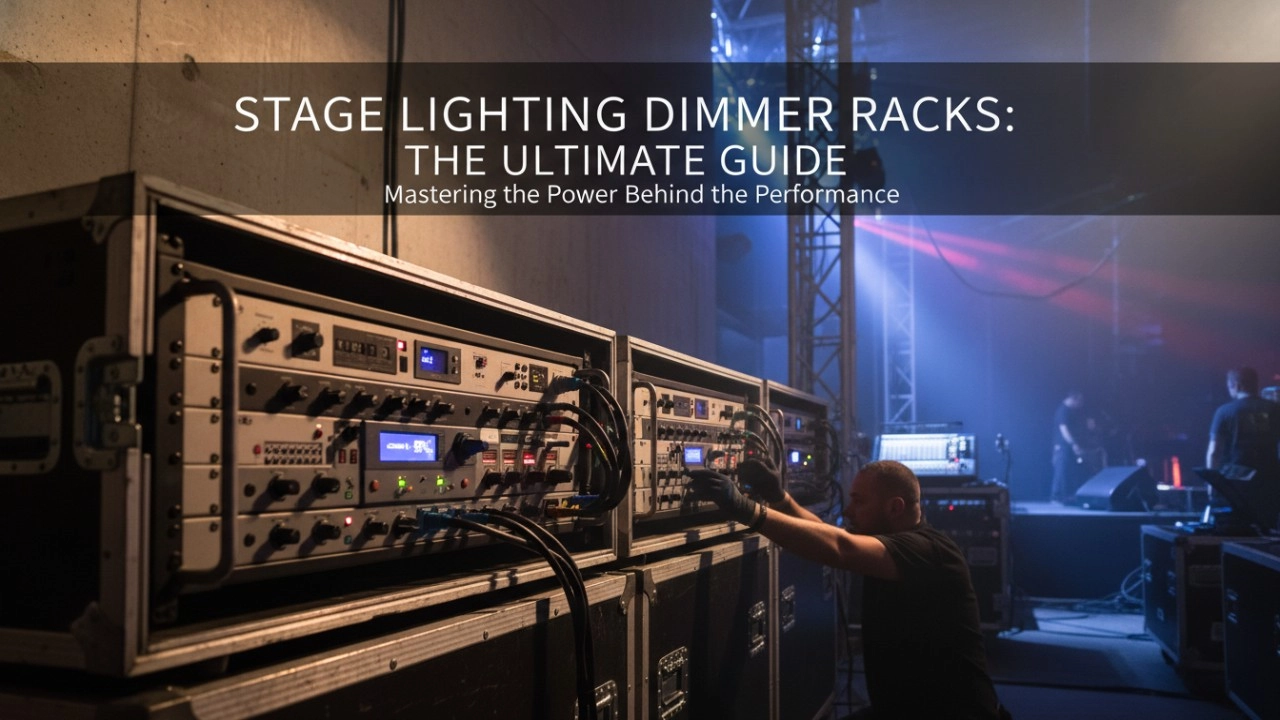
A comprehensive 2026 guide to selecting high-performance stage lighting dimmer racks. We review top hybrid systems, explore SCR vs sine wave technology, and analyze essential features like ThruPower for modern venues.
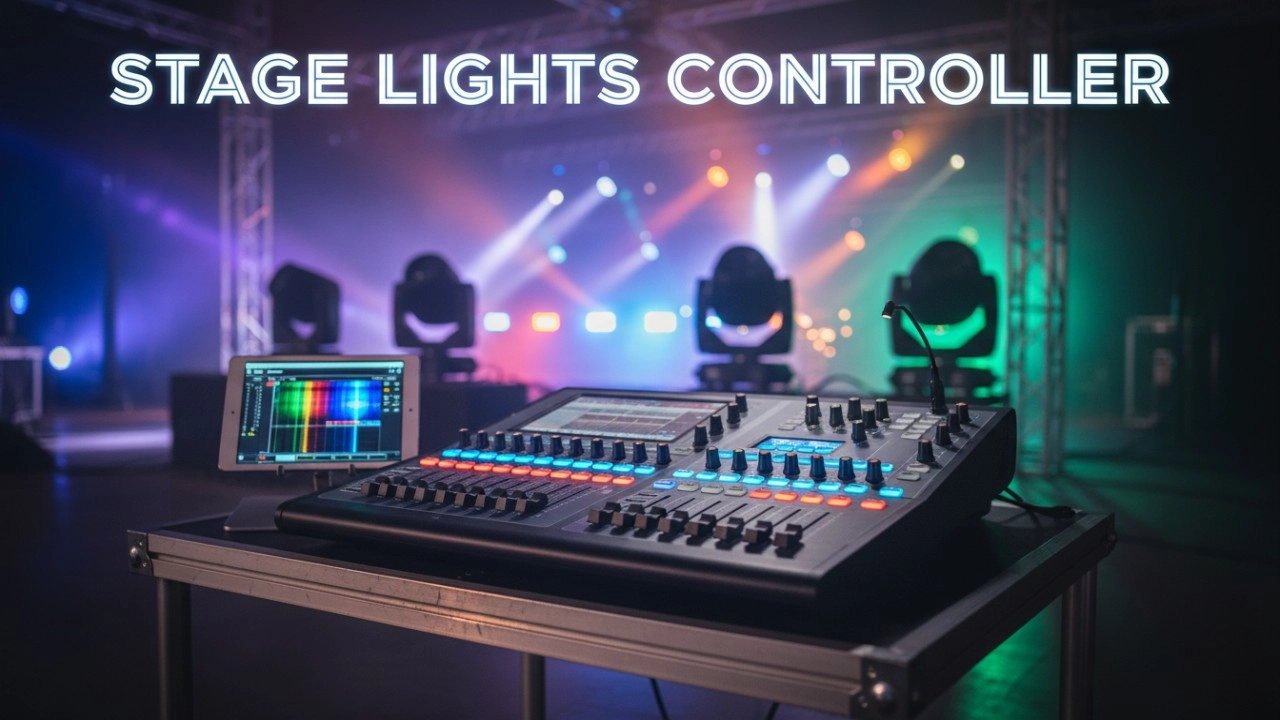
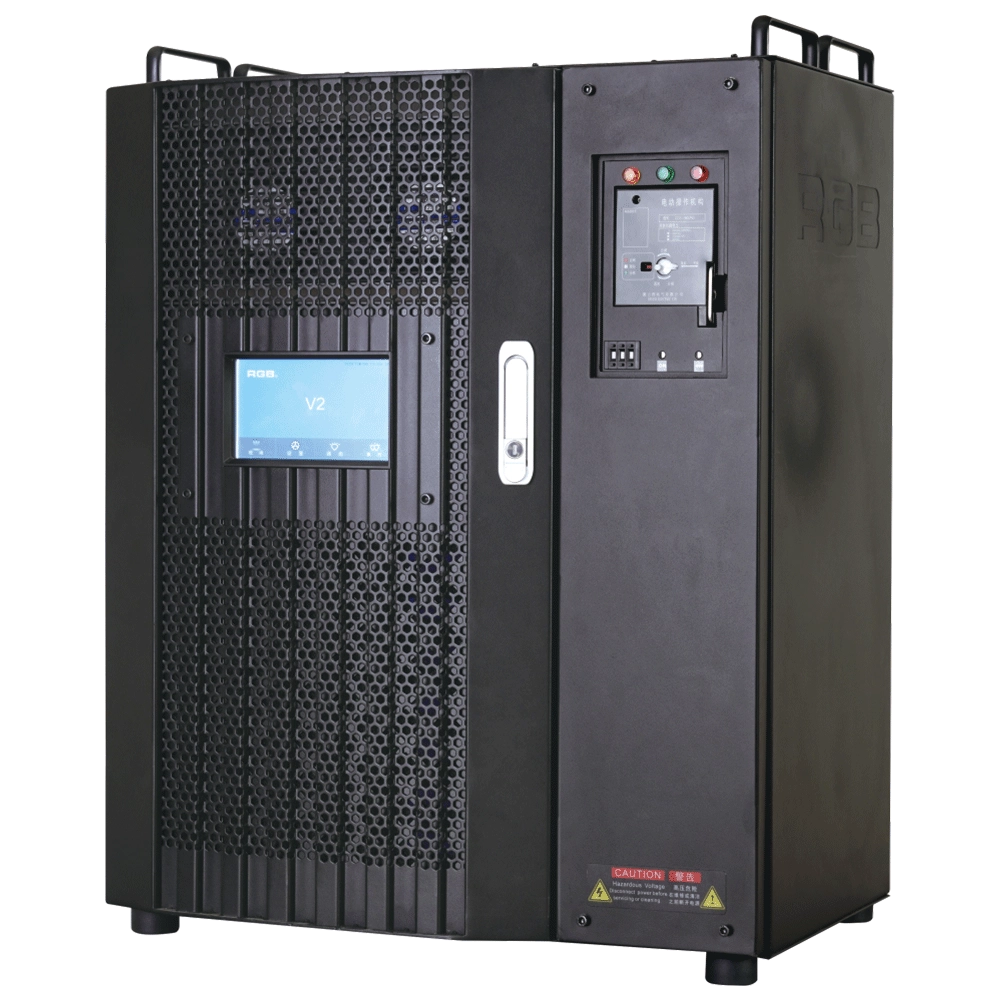
V2 Intelligent Network Dimmer/Relay Racks
V2 is an artificial intelligence dimming rack independently developed by RGB, which has completely independent core technology and obtained software copyrights. It is a fully digital electrodeless trigger and multi-backup independent CPU central processor technology. It has a variety of output configurations, such as sine wave, thyristor, relay, dimming relay, etc. It supports visual lighting control system and visually displays the online and offline status of dimming racks. Realize remote monitoring, editing, and setting of relevant parameters.
It is widely used in performing arts and cultural venues such as theaters, concert halls, multi-function halls, cultural travel and performing arts, TV stations, gymnasiums, auditoriums, commercial art lighting and so on.
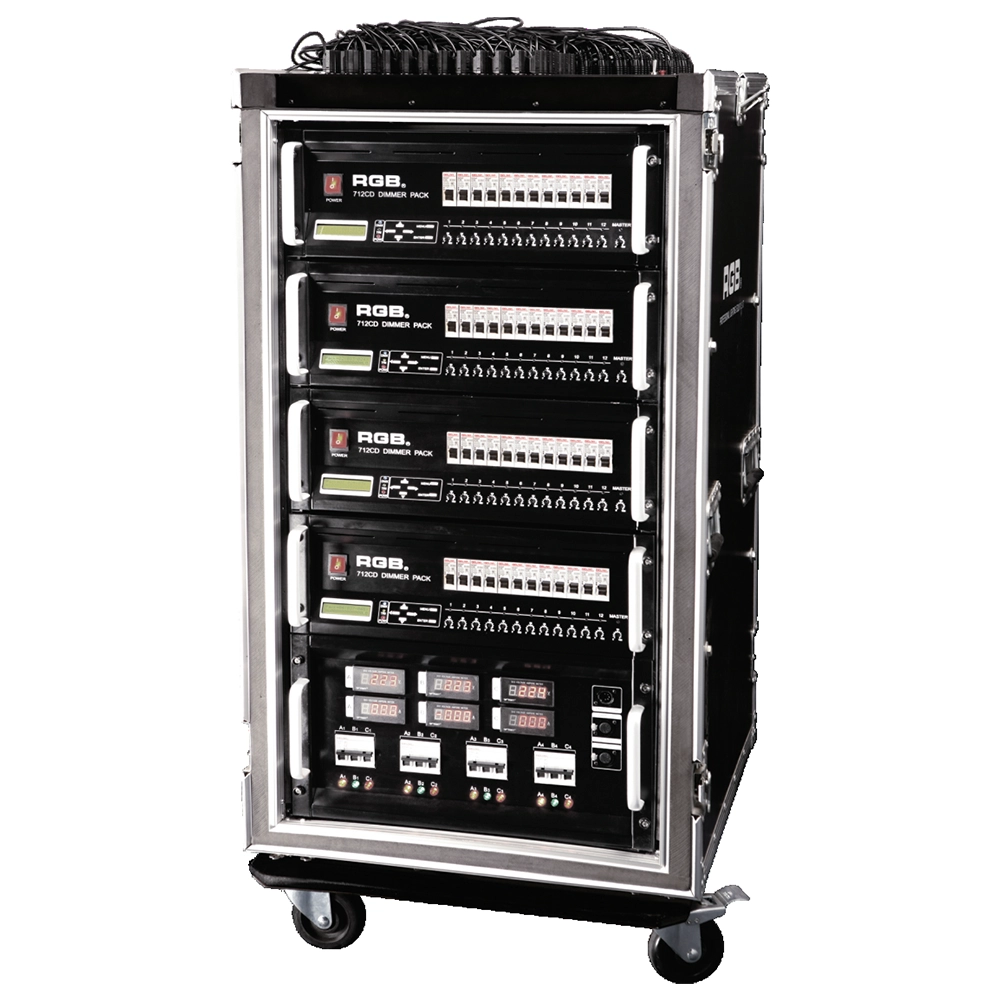
Intelligent Network Touring Dimmer Racks
RGB intelligent network touring dimmer racks can be assembledinto many types of dimmer racks by taking 7 series dimmer
packs as the unit. They are widely used in the entertainment fortheir convenience and practicabillity,
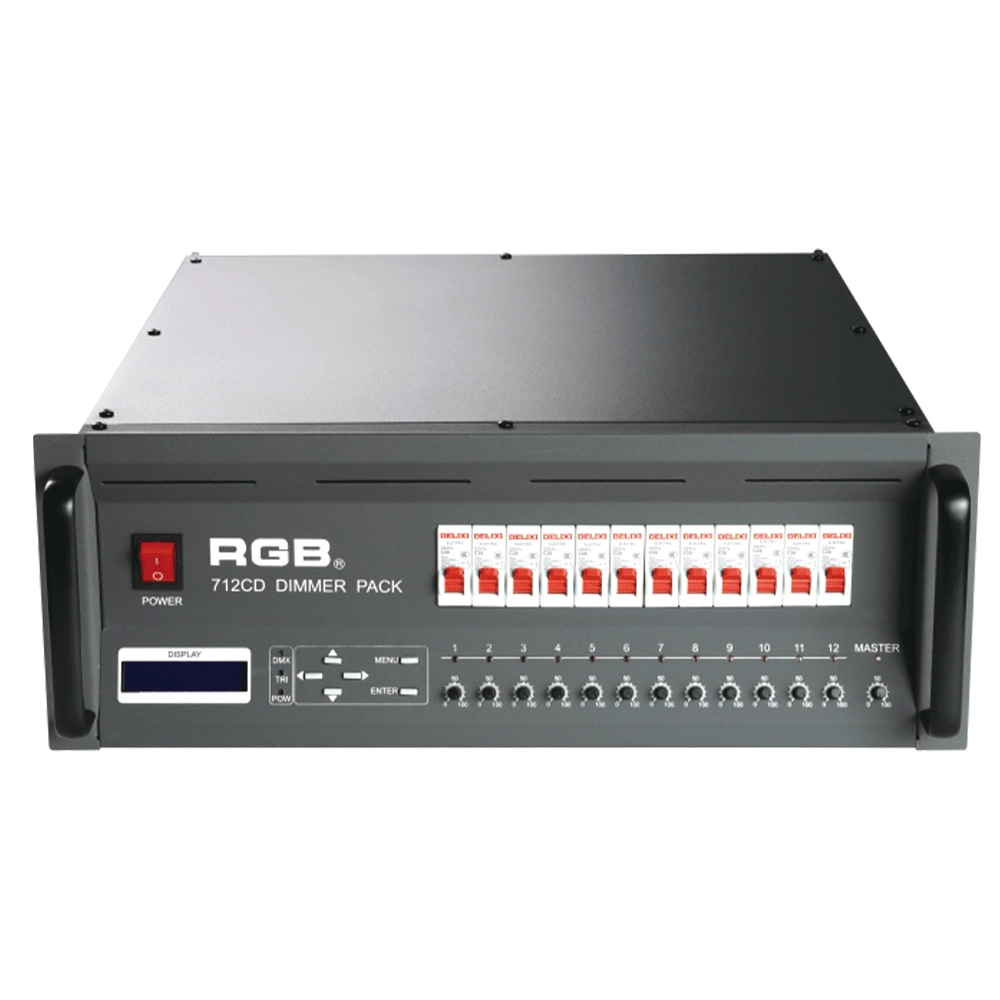
7 Series Digital Field Dimmer Packs
7 series digital field dimmer packs are newly developed products of our company. With DMX512 digital control signal input, they are compatible with other domestic and overseas digital lighting consoles. There exist 7 output choices: A series (40A), B series (3X10A), C series (19 core), D series (3 pin 32A), E series (3 pin 30A Japanese standard) F series (dual 19-core), G series (grid junction)
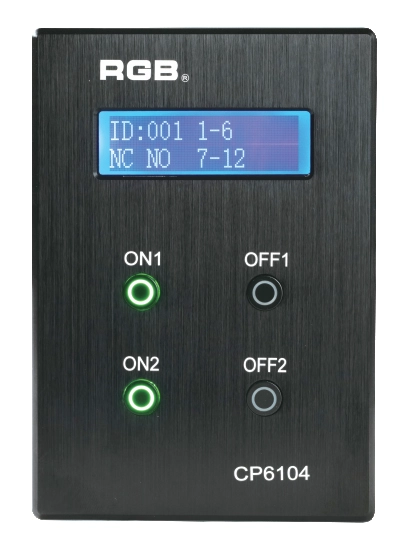
Site Light Controller CP6104
The CP6104 lighting control panel is a lighting control device for theater stage lights, work lights, environmental lighting, commercial art lighting, sports venue lighting and other places. By connecting to the dedicated lighting control host CP6100, it realizes the central control of the lighting system, supports a visual lighting control system, and intuitively displays the online and offline status of CP6104. Realize remote monitoring, editing and setting of corresponding parameters.
It is widely applicable to theaters, cinemas, auditoriums, stadiums, museums, exhibition halls, cultural tourism performances, commercial art lighting and other places.
Expert Support
Interested in learning more or need expert guidance related to this article? Fill in your details, and our team will provide tailored support.
Intelligent Control. Brilliant Performance.
RGB specializes in stage lighting control systems, delivering intelligent, reliable, and high-performance solutions for theaters and performance spaces worldwide.
Contact
Email:
Tel:
+86 20 3928 0245
+86 20 3928 0247
Address:
No.3, Huashan Road, Shilou Town, Panyu, Guangzhou, China.
Whatsapp: +8615975520131